
Tech
How to Check Your PC Performance and Make Your Windows Computer Run Faster


A computer that once felt fast can gradually become slower with regular use. Applications may take longer to open, games may experience unexpected stuttering, and everyday tasks can become frustrating when Windows stops responding smoothly. These problems can affect older computers as well as relatively new systems.
- 1. Understand the Common Signs of Poor PC Performance
- 2. Use a PC Performance Check to Understand Your System
- 3. Remove Unnecessary Files to Free Up Storage
- 4. Manage Startup Programs for a Faster Windows Experience
- 5. Close Background Applications That Consume Resources
- 6. Check Your Reaction Speed for Gaming
- 7. Keep Drivers Updated to Avoid Performance Problems
- 8. Monitor Temperatures and Prevent Overheating
- 9. Adjust Windows and Game Settings to Match Your Hardware
- 10. Why Advanced SystemCare Can Help With Routine PC Maintenance
- Final Thoughts
Fortunately, buying a new computer is not always necessary. Many performance problems are related to unnecessary background applications, limited storage space, outdated drivers, or software that consumes too many system resources. Identifying the cause is the first step toward finding the right solution.
Windows users can take several practical steps to improve their computers. Checking system performance, cleaning unnecessary files, managing startup applications, and maintaining updated drivers can all help create a smoother computing experience. Tools such as Advanced SystemCare can also simplify routine maintenance.
In this guide, you will learn how to assess your computer’s condition, identify common performance problems, and apply practical solutions to help your Windows PC run more efficiently.
1. Understand the Common Signs of Poor PC Performance
Before making changes, pay attention to how your computer behaves during everyday activities. Different symptoms can point toward different problems.
For example, if Windows takes several minutes to become usable after startup, too many startup applications may be running in the background. If programs freeze when you open several of them simultaneously, your computer may be running low on available memory.
Slow file transfers can indicate storage or hardware limitations, while unexpected stuttering during gaming may be related to graphics performance, overheating, or background processes.
Other common warning signs include:
- Applications taking longer than usual to launch.
- Frequent freezes when switching between programs.
- High CPU, memory, or disk usage when the computer is idle.
- Less available storage space than expected.
- Longer loading times in games and demanding applications.
- Excessive fan noise or unusually high temperatures.
These symptoms do not always mean your computer needs optimization software. Sometimes, the cause is a failing storage drive, insufficient RAM, a network problem, or a hardware issue.
Identifying the symptoms first can help you avoid unnecessary changes and focus on the problem that matters most.
2. Use a PC Performance Check to Understand Your System
When a computer becomes slow, guessing the cause can waste time. A better approach is to examine its current condition before making adjustments.
Windows includes several useful tools for this purpose. Task Manager shows which applications and processes are consuming CPU, memory, disk, and network resources. You can open it by pressing Ctrl + Shift + Esc.
The Performance section provides an overview of important hardware resources. If memory usage remains high while only a few applications are open, you may need to investigate which programs are consuming it. Similarly, consistently high disk usage may indicate background activity or a storage-related problem.
You can also use IObit’s rate my PC tool to explore your computer’s performance.
A PC assessment tool can help you understand aspects of your system and identify areas worth investigating. However, a single score should not be treated as a complete diagnosis. Results depend on hardware specifications, system configuration, running applications, and the type of assessment performed.
For a more useful evaluation, combine a performance check with observations from your regular computer use. If your PC receives a reasonable assessment but still freezes frequently, investigate the specific symptoms rather than relying entirely on a score.
3. Remove Unnecessary Files to Free Up Storage
Temporary files and application data can accumulate as you browse websites, install programs, and use Windows. Although many temporary files serve legitimate purposes, some eventually become unnecessary.
When storage space becomes limited, maintaining your computer can become more difficult. A nearly full system drive can also leave less room for temporary files, updates, and other routine operations.
Start by checking your storage usage in Windows Settings. Review downloaded files, temporary data, installed applications, and other categories to identify items that you no longer need.
Be careful when deleting files manually. Personal documents, saved projects, and application data should not be removed simply because they occupy considerable space.
For users who prefer a more convenient approach, Advanced SystemCare offers tools for cleaning junk files and managing certain aspects of Windows performance.
The software is designed as an all-in-one Windows maintenance utility. Its features include junk-file cleaning, startup optimization, privacy-related tools, and other performance-management functions. Its current feature set also includes options for managing large files and unnecessary application data. Availability varies by edition.
Using a dedicated maintenance tool can make routine cleaning easier, especially for users who do not want to locate every unnecessary file themselves.
However, cleaning should be performed carefully. Removing files does not automatically make every computer faster, and the actual improvement depends on the system’s existing condition.
4. Manage Startup Programs for a Faster Windows Experience
Many applications configure themselves to launch automatically when Windows starts. This can be convenient, but too many startup programs may increase boot time and consume resources in the background.
To review these programs, open Task Manager and select Startup Apps. Check the listed applications and examine their startup impact.
If you find programs that you rarely use, consider disabling their automatic startup. You can still open these applications manually whenever you need them.
Avoid disabling software that is necessary for security, hardware functionality, or other essential system operations. If you are unsure about an entry, research it before making changes.
Advanced SystemCare includes startup optimization features designed to help users manage unnecessary startup items. These features can provide a convenient way to review startup activity and improve system responsiveness.
After changing startup settings, restart your computer and observe whether Windows becomes usable more quickly.
Remember that startup optimization mainly addresses applications that launch automatically. It will not resolve every possible cause of slow performance, such as insufficient memory or a failing drive.
5. Close Background Applications That Consume Resources
Running too many applications simultaneously can affect performance, particularly on computers with limited RAM.
For example, you might have several browser tabs open while using a video editor, downloading files, and playing a game. Each application may consume some combination of CPU, memory, storage, and network resources.
Task Manager can help you identify which processes are using the most resources. If an application is consuming an unusually large amount of memory or CPU power, check whether it is performing an expected task.
Close programs you do not currently need, but avoid ending unfamiliar system processes without understanding their purpose.
Advanced SystemCare also provides optimization features intended to help manage resource usage and reduce unnecessary background activity. Depending on the edition and configuration, its tools can help users direct more available resources toward the applications they are actively using.
For gaming or demanding work, closing unnecessary applications before starting can be a simple first step toward improving responsiveness.
6. Check Your Reaction Speed for Gaming
Computer performance is important for gaming, but it is only one part of the overall experience. Your own reaction speed can also influence how effectively you respond to events on screen.
Fast-paced games often require players to recognize visual changes and react quickly. First-person shooters, racing games, rhythm games, and competitive multiplayer titles are common examples.
If you want to measure your response speed, try IObit’s reaction time test.
A reaction-time test measures how quickly you respond to a visual signal. The result is typically displayed in milliseconds, making it possible to compare several attempts under similar conditions.
For more meaningful results, follow these simple practices:
- Use the same computer and input device for each attempt.
- Sit comfortably and keep your hand in a natural position.
- Avoid distractions during testing.
- Repeat the test several times instead of relying on one score.
- Compare results when you are rested and focused.
Keep in mind that reaction-time results can be influenced by monitor characteristics, input-device latency, concentration, and fatigue. An online test also cannot perfectly reproduce the demands of an actual game.
If your reaction time is good but gameplay still feels delayed, investigate your frame rate, system performance, monitor settings, and network connection. These factors can affect how quickly actions appear on screen.
7. Keep Drivers Updated to Avoid Performance Problems
Device drivers allow Windows to communicate with hardware components such as graphics cards, sound devices, network adapters, and other peripherals.
Outdated or incompatible drivers can sometimes cause instability, device errors, or problems with particular applications.
Graphics drivers deserve particular attention if you play PC games. Updates may include compatibility improvements, bug fixes, and optimizations for newer titles.
You can check for appropriate updates through Windows Update or the official website of your hardware manufacturer.
IObit also offers Driver Booster, a separate utility designed to identify and update supported outdated, missing, or faulty drivers. Its purpose is to simplify driver maintenance, although users should always verify compatibility before installing updates.
Updating a driver does not guarantee a performance improvement in every situation. If your computer is stable, focus on updates that address known problems, improve compatibility, or provide relevant benefits for your hardware.
Before making significant system changes, consider creating a restore point so you have an additional recovery option if something goes wrong.
8. Monitor Temperatures and Prevent Overheating
Overheating is another possible cause of reduced performance.
Modern processors and graphics cards can lower their operating speeds when temperatures become too high. This helps protect the hardware, but it may also result in reduced performance during demanding tasks.
If your computer becomes unusually loud or performance drops after several minutes of gaming, check whether heat could be contributing to the problem.
Keep ventilation openings clear and place laptops on hard, flat surfaces. For desktop computers, inspect the fans and cooling system periodically to ensure that dust is not restricting airflow.
You can use a reputable hardware-monitoring utility to observe CPU and GPU temperatures. Compare the readings with the manufacturer’s recommended operating limits because different components have different thermal characteristics.
If temperatures remain unusually high, investigate the cooling system rather than relying on a software cleaner to solve the problem.
9. Adjust Windows and Game Settings to Match Your Hardware
Not every computer can run demanding games at maximum graphics settings. Adjusting the settings to match your hardware can help create a smoother experience.
If a game frequently drops frames, try reducing demanding visual effects such as shadows, reflections, or other graphics options. The effect of each setting depends on the game and your hardware.
You can also check the display resolution and refresh rate to make sure they match your intended configuration.
For everyday Windows use, avoid keeping unnecessary applications open in the background. If your computer has limited memory, closing unused browser tabs and resource-intensive programs can make switching between tasks easier.
Make changes gradually and test the results after each adjustment. This helps you understand which settings actually improve performance.
If a computer continues to struggle despite reasonable settings, the limitation may be related to its hardware rather than unnecessary software.
10. Why Advanced SystemCare Can Help With Routine PC Maintenance
Managing every aspect of PC maintenance manually can take time. Users may need to check storage, review startup applications, clean temporary files, and investigate unnecessary background activity.
Advanced SystemCare brings several maintenance and optimization features together in one Windows application.
Its current feature set includes:
- Junk-file cleaning: Helps identify and remove supported unnecessary files.
- Startup optimization: Helps manage programs that launch automatically.
- System optimization: Provides tools designed to address selected performance issues.
- Privacy-related cleaning: Helps clear certain browsing traces and other supported data.
- Application and extension management: Helps users manage unnecessary software components.
- Performance-related tools: Offers additional options for managing aspects of system responsiveness.
Feature availability varies between the free and paid editions. You should review the current product details to determine which functions are included in the version you intend to use.
For users who want a centralized maintenance solution, Advanced SystemCare is worth considering. It can simplify several routine tasks and help identify areas that may benefit from attention.
Nevertheless, no optimization application can guarantee that every computer will become significantly faster. Results depend on the underlying problem, system specifications, and the changes made.
If your computer has a failing hard drive, inadequate cooling, or insufficient memory for your workload, you may need a hardware-related solution instead.
Final Thoughts
A faster, more responsive Windows computer starts with understanding what is affecting its performance. Unnecessary startup programs, limited storage, background applications, outdated drivers, and overheating can all contribute to a frustrating experience.
Begin by checking your computer’s condition, reviewing resource usage, and identifying the most noticeable symptoms. Use Windows’ built-in tools to manage startup applications and storage, and keep important software and drivers updated.
Tools such as IObit’s Rate My PC and Reaction Time Test can provide additional ways to explore system performance and personal response speed. For routine cleanup and optimization, Advanced SystemCare offers several maintenance features in one place.
The best results usually come from combining sensible software maintenance with appropriate hardware care. Rather than expecting one tool to solve every problem, address each issue according to its cause. This approach can help you maintain your existing computer and enjoy a more consistent experience during work, browsing, and gaming.


Trees do more than shade your backyard. They boost property value, clean the air, and give your landscape character that no amount of landscaping stone or mulch can replicate. But healthy trees don’t happen by accident — they need regular attention from people who understand how Central Texas soil, weather, and native species behave.
- Why Tree Health Matters More Than You Think
- Common Signs Your Trees Need Attention
- Dead or Dying Branches
- Unusual Leaning or Root Damage
- Pest Infestations or Fungal Growth
- Overgrowth Near Structures
- What Professional Tree Care Actually Involves
- How to Choose the Right Tree Care Provider in Austin
- Protecting Your Property Starts With the Right Care
That’s where Austin Tree Specialists comes in. With years of hands-on experience caring for trees across the Austin area, the team combines local knowledge with proven techniques to keep your trees thriving through every season. Whether you’re dealing with storm damage, overgrown limbs, or a tree that’s simply seen better days, knowing when and how to act makes all the difference.
This post walks through the most common tree care needs homeowners face, what causes them, and how professional care can protect your property for years to come.
Why Tree Health Matters More Than You Think
A healthy tree isn’t just a nice backdrop for your yard — it’s an investment. Mature, well-maintained trees can increase curb appeal and property value significantly, and they provide practical benefits too: shade that cuts cooling costs, windbreaks that protect your home, and root systems that help prevent soil erosion.
But trees under stress can quickly become liabilities. Weak limbs can snap during storms. Diseased trees can spread problems to healthy ones nearby. And overgrown branches can interfere with power lines or damage roofs. Austin’s climate, with its hot summers and occasional severe storms, adds extra pressure on local trees, making regular care even more important.
Common Signs Your Trees Need Attention
Most tree problems don’t appear overnight. They build gradually, and catching the early signs can save you money and prevent bigger headaches down the road.
Dead or Dying Branches
Branches that are brittle, discolored, or no longer growing leaves are a clear signal something is wrong. Left unaddressed, they can fall unpredictably, posing a risk to people, pets, and property.
Unusual Leaning or Root Damage
A tree that suddenly starts leaning, or one with roots that are cracking your driveway or lifting your foundation, needs a professional assessment right away. These issues often indicate instability that only gets worse with time.
Pest Infestations or Fungal Growth
Insects boring into bark, visible fungus at the base of the trunk, or unusual spotting on leaves can all point to underlying health issues that require targeted treatment before they spread.
Overgrowth Near Structures
Branches creeping toward your roofline, windows, or power lines aren’t just inconvenient — they’re a safety hazard, especially during Austin’s storm season.
What Professional Tree Care Actually Involves
Caring for trees goes well beyond trimming a few branches. It requires an understanding of tree biology, seasonal timing, and the right tools and techniques for each situation.
Pruning and Trimming
Proper pruning encourages healthy growth, improves a tree’s structure, and reduces the risk of falling limbs. Done incorrectly, however, pruning can stress a tree or open it up to disease. Knowing which branches to remove, and when, takes training and experience.
Tree Removal
Sometimes a tree is too far gone to save, or it’s located somewhere that poses an ongoing risk. Safe removal requires careful planning, especially near homes, fences, or utility lines, to prevent damage during the process.
Stump Grinding
Leftover stumps aren’t just an eyesore. They can attract pests, create tripping hazards, and take up valuable yard space. Grinding them down clears the way for new landscaping or simply a cleaner-looking yard.
Disease and Pest Management
Catching and treating disease or infestations early can mean the difference between saving a tree and losing it entirely. This often involves identifying the specific issue and applying treatments designed for that problem.
How to Choose the Right Tree Care Provider in Austin
Not all tree care is created equal, and the wrong approach can actually do more harm than good. When evaluating a provider, consider the following:
- Experience with local tree species: Austin’s trees, from live oaks to cedar elms, each have unique needs. A provider familiar with the local ecosystem can tailor their approach accordingly.
- Proper equipment and safety practices: Tree work can be dangerous, especially around power lines or tall structures. Professionals should have the right gear and training to work safely.
- Transparent communication: A good provider explains what they’re doing and why, rather than leaving you guessing about the health of your trees.
- Comprehensive service offerings: From pruning to removal to ongoing maintenance, working with a team that covers the full range of needs saves you the hassle of coordinating multiple providers.
Protecting Your Property Starts With the Right Care
Reliable tree service that keeps your property safe, beautiful, and stress-free year-round is exactly what busy Austin homeowners need, without the guesswork of DIY trimming or the risk of hiring an inexperienced crew. Austin Tree Specialists brings the local expertise, equipment, and attention to detail needed to keep your trees healthy through every season, from the summer heat to storm cleanup.
Whether you’re noticing early warning signs or simply want peace of mind that your trees are in good hands, reaching out to a trusted local team is the smartest first step. Healthy trees don’t just happen; they’re the result of consistent, knowledgeable care, and that’s a service worth investing in.
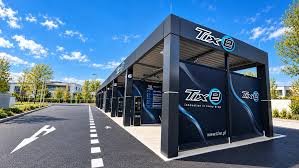
There’s a moment at every well-run outdoor event when nobody’s thinking about restrooms. The band’s playing, the food trucks have lines, kids are running around with face paint smudged across their cheeks. Nobody’s worried about the one thing that could’ve derailed the whole day. That’s not an accident. That’s the result of someone, somewhere, making a quiet decision weeks earlier to get the logistics right.
Event planners and job site managers rarely get applause for the things that go smoothly. They get complaints when something goes wrong. A broken-down unit, a long line, an overflowing tank — these are the details that turn a great event into a forgettable one, or worse, a viral complaint on social media. The people who avoid that fate have usually done one thing: they planned ahead for sanitation before it became an emergency.
This is the story of what it actually feels like when that part of the job is handled right — and why so many organizers, contractors, and hosts have stopped treating restroom logistics as an afterthought.
The Morning Before the Crowd Arrives
Picture a construction foreman walking the site at 6 a.m., coffee in hand, running through his mental checklist. Materials delivered? Check. Crew scheduled? Check. Restrooms stocked, clean, and placed where they won’t slow down foot traffic? Also check — because it was handled days ago, not scrambled together the night before.
That’s the difference between reactive planning and proactive planning. A job site with dozens of workers can’t afford downtime because someone has to drive off-site to find a restroom. A well-placed, well-maintained unit keeps people on the clock and focused on the work in front of them. It sounds like a small thing until you calculate the hours lost across a crew of twenty, thirty, or more over the course of a project.
Event organizers face a similar reality, just with higher stakes in terms of public perception. A wedding, a festival, a charity run — these are moments people remember, good or bad. Guests don’t typically compliment a host on restroom availability, but they absolutely notice when it’s missing or poorly managed. The invisible stuff is often the stuff that matters most.
What Actually Goes Into Getting It Right
Good sanitation planning isn’t just about dropping off a unit and walking away. It takes an understanding of guest count, duration of the event, site layout, and accessibility needs. A backyard birthday party has different requirements than a three-day music festival with ten thousand attendees. A six-month construction project needs a different service rhythm than a one-day 5K race.
This is where experience matters. Knowing how many units a crowd realistically needs, how often servicing should happen to avoid unpleasant surprises, and how to position units so they’re accessible without disrupting flow — these are details that separate a smooth operation from a logistical headache. It also means having ADA-compliant options ready for events that need to accommodate guests with mobility needs, something that’s increasingly expected rather than optional.
Reliability counts for a lot here too. A unit that’s delivered late, serviced inconsistently, or poorly maintained can undo all the other planning that went into an event. Cleanliness isn’t a nice-to-have; it’s the baseline expectation. People notice immediately if something feels off, and that impression can color how they remember the entire day.
Why Contractors and Hosts Are Rethinking Who They Trust With This Job
There’s been a shift in how construction managers and event planners approach sanitation. It used to be treated as a last-minute checkbox item — something ordered the week before and forgotten about. Now, more organizers are building it into their planning timeline from the start, right alongside permits, vendors, and staffing.
Part of that shift comes from experience. Anyone who’s dealt with a sanitation failure once tends to never make that mistake twice. The smarter move has become partnering early with a provider who understands the specific demands of the job or event, rather than treating the whole category as interchangeable.
Reliable sanitation solutions that keep crews working and guests comfortable without a second thought start with Express Portable, a company built around the idea that this part of the job should never be the reason an event or project runs into trouble. Whether it’s a single unit for a weekend gathering or a full rotation of units across a multi-week construction timeline, the goal is the same: keep things clean, keep things stocked, and keep people focused on what they came to do.
That kind of dependability builds trust fast. When a provider shows up on time, services units without being chased down, and answers questions before they even become problems, it changes the entire relationship. Planners stop worrying about that part of the checklist entirely, which frees them up to focus on the hundred other things competing for their attention.
The Real Payoff: Nobody Notices, and That’s the Point
The best compliment a sanitation provider can get is silence. No complaints, no lines, no awkward moments where someone has to apologize for a broken unit. When restrooms are clean, well-stocked, and conveniently placed, guests and workers alike simply move on with their day. That silence is the whole goal.
For event planners, this translates into glowing feedback about the parts of the day people do notice — the music, the food, the atmosphere — because nothing distracted from it. For construction site managers, it means a crew that stays productive instead of losing time to inconvenience. In both cases, the value isn’t flashy, but it’s real, and it compounds over every event or project where it’s done right.
Making the Invisible Part of the Job Easier
Every successful event or job site runs on dozens of small decisions made well in advance. Sanitation shouldn’t be the one detail left to chance. The organizers and contractors who’ve figured this out aren’t doing anything complicated — they’re just choosing to plan early, ask the right questions about crowd size and duration, and work with a provider who treats reliability as non-negotiable.
The next time an event goes off without a hitch, or a job site hums along without a single sanitation complaint, remember that it didn’t happen by luck. It happened because someone made a smart call early on, and because the quiet work of showing up, cleaning up, and following through got handled exactly as it should have.

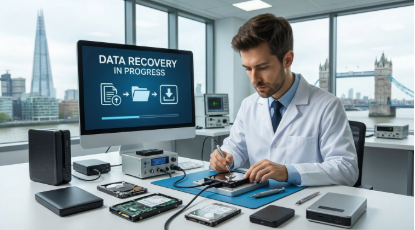
Introduction
Portable hard drives contain family photos, client projects, financial information and years of hard work.
They are compact and handy, but also makes them susceptible to drops, knocks and everyday wear. When one suddenly stops responding, there’s panic. The good news is that a failed drive seldom means that the data has disappeared forever.
Most files are safely saved when there is professional External recovery London .
This guide explains why portable drives fail, what you need to do immediately and how you choose an expert that you need.
Why Portable Drives Fail
Portable drives live in distress. They are transported in bags, connected to various computers and are often removed without safe release. The following are the most common reasons for failure:
- Physical damage from drops that may damage the read/write heads or platters.
- Corrupted file systems after power failure or insecure removal .
- Clicking, beep or grinding caused by mechanical disturbance .
- Water, heat or moisture damage Firmware Errors that prevent the drive Knowing to recognize the cause .
because it will decide which recovery method is safe. A logical mistake like corruption requires treatment different from a mechanical fault, such as head damage.
Warning Signs to Watch For
Drives often warn you before failing completely. Look out for:
- The drive not appearing in File Explorer or Finder
- Your computer freezing when it is connected
- Very slow transfers or frequent errors
- Missing or unreadable files
- Unusual clicking or buzzing sounds
If the drive still works, back up what you can immediately. If it does not, stop using it.
What to Do (and What Not to Do) When Your Drive Fails
You could decide if your data will survive for the first few minutes. Disconnect the drive immediately, keep it safe and dry anywhere, and note the symptoms so that you can describe them to a specialist.
What you avoid is equally important. Keep the drive not connected to “see if it works.” Don’t run free recovery software on a physically damaged drive, and never open the casing itself. Shaking, knocking, or placing the drive in a freezer are myths that truly do harm. Every attempt on a failed drive can increase wear and overwrite exactly the data that you would like to get back.
How Professional External Hard Drive Recovery Works
Professional external hard drive recovery London services follow a structured process:
Diagnosis: Engineers will explore the drive to identify the fault and assess the likelihood of recovery.
Cleanroom repair: For mechanical failures, damaged parts like read/write heads are replaced in dust-free surroundings.
Imaging: A sector-by-sector copy will be created so the original drive is not stressed anymore.
Data extraction: File structures will be reset, your files will be restored from image.
Verification and Return: Recovered files are checked and transmitted on new media.
Unlike generic software, this approach is built for physically damaged drives that are unstable or severely corrupted.
Why Choose a London-Based Specialist
The choice of a local provider gives practical advantages. You can hand deliver the drive, avoiding risk of post-transit.
Urgent cases can often be dealt with faster and you can talk face to face with engineers. If you need external hard drive recovery London for a portable or removable drive, working with an experienced local lab will provide you with clear communication and fast turnaround at a time of stress.
What to Look for in a Recovery Service
Not every provider offers the same standard. Before you hand over your drive, check for:
- Genuine cleanroom facilities
- Transparent pricing and a clear evaluation process
- Experience with all major brands, such as Seagate, Western Digital, Toshiba and Samsung
- Strict confidentiality and secure handling of your files
- Helpful, honest communication about your chances of success
How to Protect Your Data in the Future
Once your files are back, ensure that you never encounter this stress again. Follow 3.2-1 Backup Rule: Keep three copies of your data in two different kinds of storage, either with a copy from the site or stored in the cloud. Always eject drives safely, handle them carefully, and replace older drives before failing.
Conclusion
A failed portable drive is scary but it’s not the end of your data. Take action fast, stop use of the drive and avoid risky DIY fixes. Professional external recovery London specialists have the tools, cleanroom facilities and experience to restore files which simply can not reach the software.
Select a trusted provider to store and protect your recovered data using a proper backup plan. Your important files will stay secure in the future.

Best IPTV UK for Football: What Fans Should Compare

Turning trade show budgets into measurable pipeline

Being Named an Executor: What the Role Really Involves

Alex Pettyfer Net Worth, Wife, Age, Height, Children, Career and More

Brad Williams Net Worth, Wife, Height, Age, Daughter, Family, Career and More

Eldorado.gg Review 2026: How It Works, Safety, Fees, and Risks
-
Celebrity10 months ago
Alex Pettyfer Net Worth, Wife, Age, Height, Children, Career and More
-
Celebrity10 months ago
Brad Williams Net Worth, Wife, Height, Age, Daughter, Family, Career and More
-
Blog2 months ago
Eldorado.gg Review 2026: How It Works, Safety, Fees, and Risks
-
 Anime11 months ago
Sanzoku Bandits of One Piece: Origins, Higuma, and Their Role in Dawn Island
-
 Celebrity10 months ago
John McGinn Net Worth, Age, Height, Wife, Childrens, Career and More
-
 Celebrity10 months ago
Frances de la Tour Net Worth, Age, Height, Husband, Childrens, Career and More
-
 Celebrity11 months ago
Will Trickett Net Worth, Wife, Childrens, Age, Career and More
-
 Blog2 months ago
Crackstube: A Complete Guide to the Digital Publishing Platform