
Technology
Best PC Optimization Tools for Slow Computers (Real Performance Tests)

Older Windows PCs rarely fail all at once. They slow down gradually. Background apps eat RAM, startup programs crowd the boot process, and leftover files fill the drive. Before long, CPU usage spikes and the desktop takes minutes to load.
Sound familiar? Most slowdowns trace back to clutter you can safely remove.
We tested popular optimization utilities on a sluggish Windows laptop to see which ones actually help. This test-based comparison shows what each tool does well, where it falls short, and how to measure results yourself. If you want a reliable PC cleaner, start here.
Criteria for Testing PC Optimization Utilities
We tested each tool on the same aging Windows laptop and judged it on four factors that matter on a slow machine:
- Ease of use: Can a beginner run it without reading a manual?
- System resource recovery: Does it free up RAM and disk space you can actually see?
- Depth of clean: Does it go beyond temp files into startup items, registry clutter, and browser leftovers?
- Safety: Does it back up changes and avoid touching critical system files?
A good PC cleaner should score well in all four areas, not just one.
Top Recommended Optimization Tools
1. Advanced SystemCare
Features: In our testing, Advanced SystemCare proved to be the most comprehensive tool available. With just a single click, it cleans up registry entries, disk clutter, and junk files left behind by apps and extensions. Beyond basic cleaning, it lets you intuitively manage startup programs to speed up boot times. It also monitors RAM and CPU usage in real time, optimizing resources in the background to free up memory and boost overall system performance.
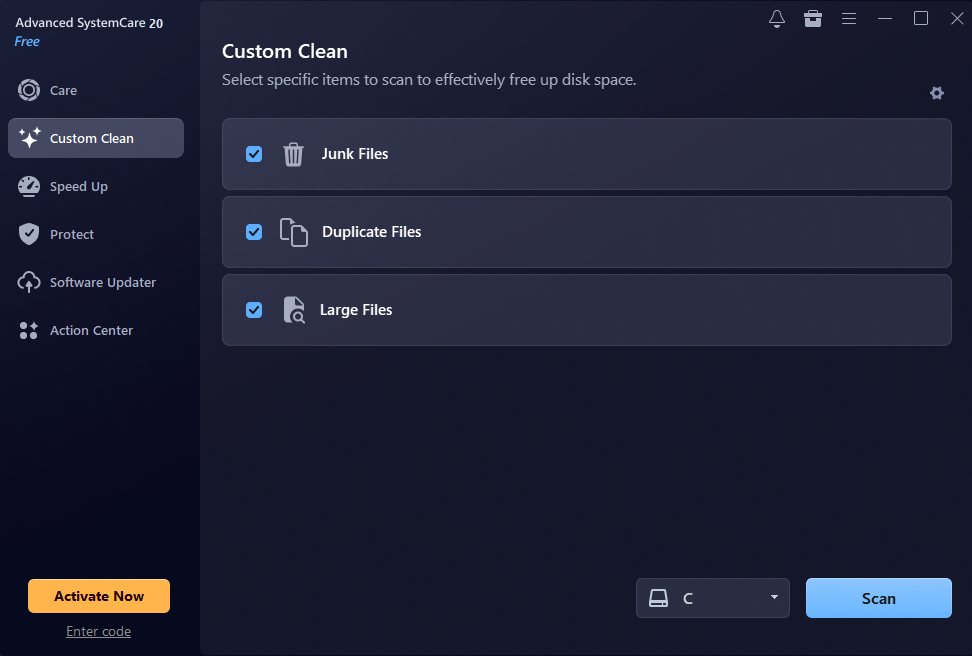
The latest Advanced SystemCare 20 update brings a sleek, modern UI redesign. We were particularly impressed by the new Custom Clean feature, which quickly identifies duplicate and large files—making it effortless to reclaim valuable disk space.
Performance Test Result: In our tests, startup time dropped noticeably, and one scan cleared gigabytes of hidden junk, including leftover update files and browser caches. We also noticed fewer background processes running at idle. The PC felt more responsive right away.
Best For: Comprehensive daily maintenance as an automated Windows cleaner. Advanced SystemCare suits people who want regular upkeep without manual work.
2. CCleaner
Features: CCleaner is a practical, safe maintenance tool focused on junk cleanup and browser privacy. It offers one-click automated care via Health Check alongside full manual control for deeper cleaning.
Designed for deeper control, CCleaner features a Performance Optimizer, startup manager, registry cleaner, real-time monitoring, and flexible scheduled cleaning for predictable maintenance.
Performance Test Result: CCleaner is built to be lightweight, straightforward, and ready to run right out of the box. In our tests, junk file cleanup took just a single click. The only downside is that the free version features frequent ads, which require manual closing.
Best For: Users who prefer lightweight software.
3. Native Windows Built-in Tools (Storage Sense & Disk Cleanup)
Features: Storage Sense and Disk Cleanup come with Windows, so there is nothing to install. Both are safe to run and need no learning curve. They clear temporary files, Recycle Bin contents, and old update leftovers. Storage Sense can even run on a schedule.
Limitations: They do not manage startup programs, perform deep registry cleanup, or tune RAM in real time. That makes them a fair starting point, not a full tune-up.
Performance Test Result: In our tests, they recovered a fair amount of disk space, but boot time barely changed. Still, the cleanup was safe and quick, which counts for a lot.
Best For: Light upkeep on a healthy PC. They are safe, free, and worth enabling no matter what else you use. Pair them with a dedicated tool if boot time is your main problem.
A Step-by-Step Guide to Speeding Up Your PC
Here is a clear, concise guide showing how to use Advanced SystemCare to clean, optimize, and speed up your PC.
Step 1. Launch the PC Optimizer
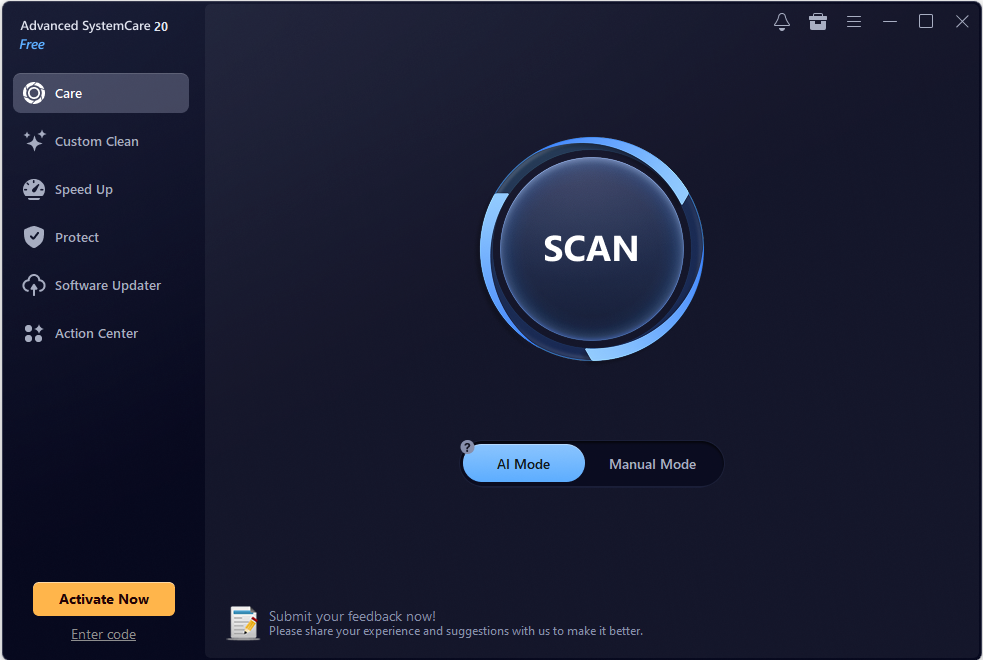
After downloading and installing this PC cleaner, launch it on your Windows PC. Please be careful not to select any bundled software. Under the “Care” tab, click “SCAN” in AI Mode to automatically scan all the files & items on your PC.
Step 2. Clean up & Auto Fix
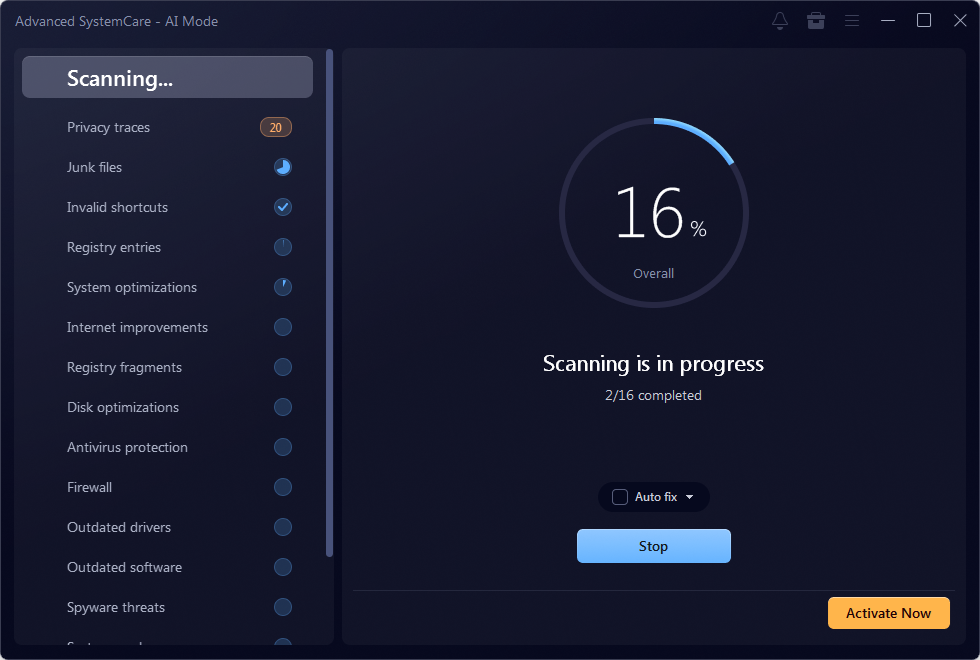
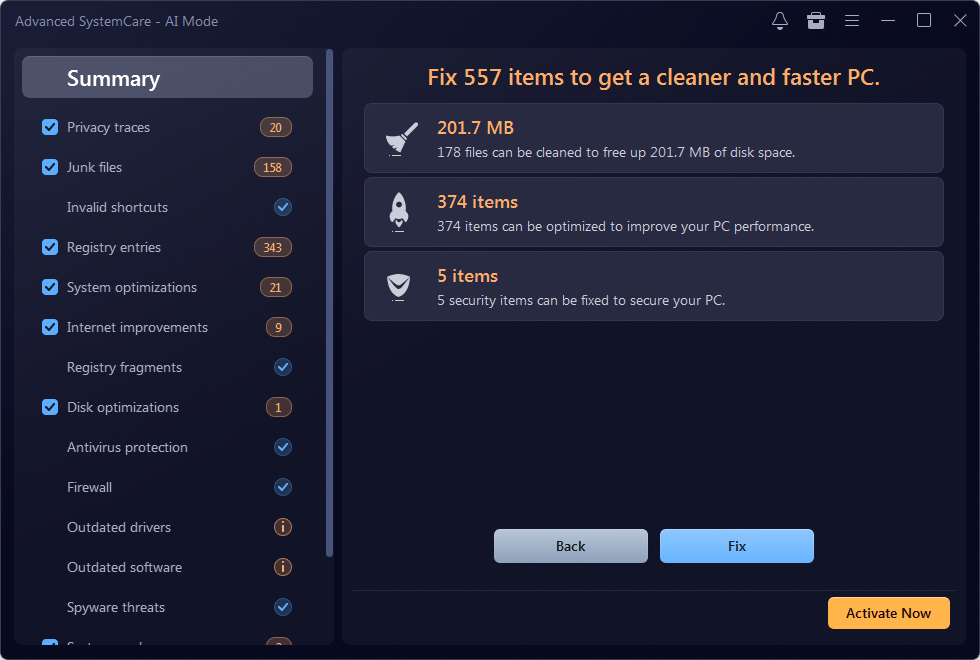
As shown, Advanced SystemCare detected 201.7 MB of unnecessary files and 379 items. Next, click on “Fix” to clean up junk files and auto-fix system errors to optimize PC performance easily.
Step 3: Manage Startup Programs
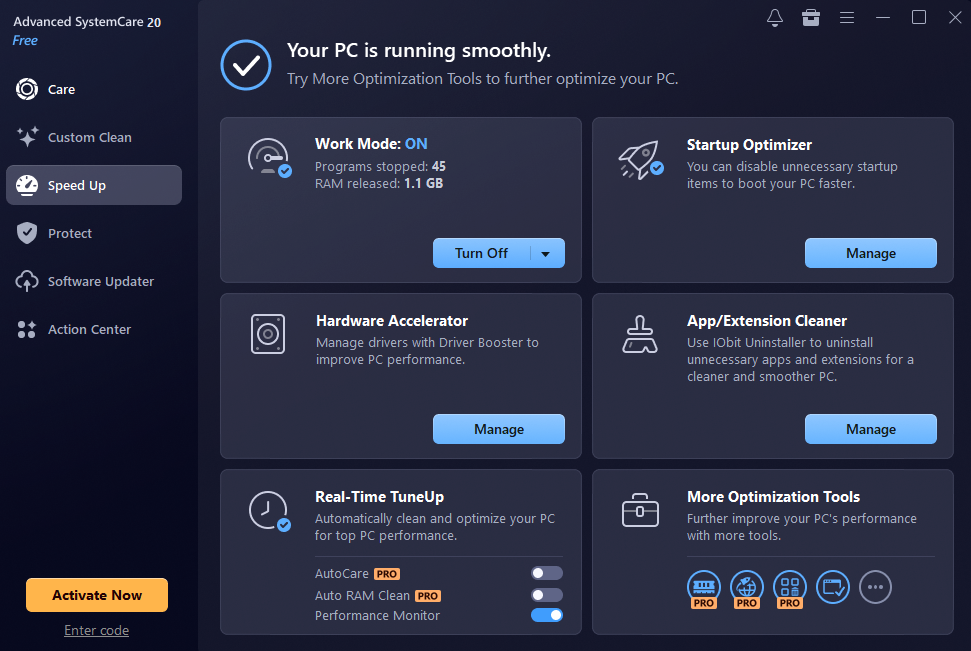
Navigate to the Speed Up tab and select Startup Optimizer. Disable non-essential applications and background services from launching at boot. This dramatically reduces boot time and frees up memory immediately.
Step 4: Free Up Disk Space with Custom Clean
Switch to the Tools or Custom Clean section. Run a scan for Large Files and Duplicate Files. Review the list and delete unneeded duplicates or massive leftover files to reclaim valuable SSD/HDD space.
Conclusion
Our tests showed that a dedicated PC cleaner can speed up an aging system more than Windows’ built-in tools alone, mainly through startup management and deeper cleanup. The biggest wins came from trimming startup items and clearing hidden junk. Advanced SystemCare delivered the most noticeable results, while Storage Sense remains a solid baseline. Pair a trusted Windows cleaner with regular restarts and updates, then re-test your PC to see the difference yourself. Monthly maintenance keeps slowdowns from creeping back.

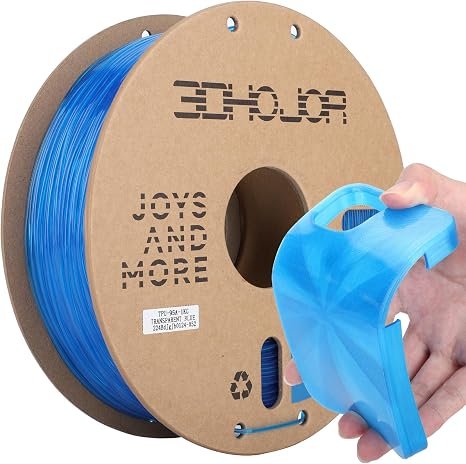
Choosing the right filament is an important step toward achieving high-quality 3D prints. While rigid materials are suitable for many everyday projects, flexible materials offer additional possibilities for creating bendable, durable, and impact-resistant parts. Among these options, TPU-95A is a popular choice because it combines flexibility with firmness, making it suitable for a wide range of practical applications.
- 1. Understand What TPU 95A Filament Is
- 2. Check Your 3D Printer Compatibility
- 3. Consider Filament Quality
- 4. Review the Recommended Printing Temperature
- 5. Choose the Right Printing Speed
- 6. Match the Filament to Your Project
- 7. Check Storage and Moisture Resistance
- 8. Compare Value Before Buying
- Conclusion
However, not every filament works equally well with every 3D printer. Before purchasing Flexible 3D Filament, you should consider material quality, printer compatibility, printing settings, and the requirements of your project. This guide explains the key factors to help you make an informed decision.
1. Understand What TPU 95A Filament Is
TPU stands for thermoplastic polyurethane, a flexible material known for its elasticity, abrasion resistance, and durability. The 95A designation refers to its Shore A hardness rating, which measures resistance to indentation.
TPU-95A offers a balance between flexibility and firmness. It can bend and compress under pressure while maintaining enough structure for many functional parts. Compared with softer TPU grades, 95A is generally firmer and may be easier to handle in some printing setups.
This material is commonly used for protective cases, flexible grips, cushioning components, wearable accessories, and functional prototypes. The flexibility of a finished print also depends on its wall thickness, infill density, and overall design.
2. Check Your 3D Printer Compatibility
Before buying Flexible 3D Filament, check whether your printer can reliably handle flexible materials. TPU can behave differently from rigid filaments because it may compress or buckle when pushed through the extruder.
A direct-drive extruder is often a good option because the filament travels a shorter distance before reaching the hotend. This can improve feeding control and reduce the risk of buckling.
Bowden-style printers can also print TPU, but results may depend on the filament path, extruder design, and printer settings. Review your printer manufacturer’s recommendations to confirm compatibility before purchasing.
3. Consider Filament Quality
Filament quality can significantly affect print consistency and the appearance of the final product. When comparing TPU-95A options, look for clear technical specifications and reliable manufacturing standards.
Consider these factors:
- Consistent diameter: Uniform filament diameter helps maintain predictable extrusion.
- Material consistency: A consistent formulation supports more repeatable printing results.
- Spool quality: Proper winding can reduce tangles and feeding interruptions.
- Clear instructions: Manufacturer guidance makes it easier to choose appropriate printing temperatures and speeds.
- Reliable packaging: Moisture-resistant packaging helps protect the filament during storage and shipping.
Choosing a well-documented product can save time during setup and troubleshooting.
4. Review the Recommended Printing Temperature
Different TPU formulations may require different nozzle temperatures. For this reason, always begin with the range recommended by the filament manufacturer rather than relying on a universal setting.
If the temperature is too low, the filament may not flow consistently or bond properly between layers. Excessive heat may contribute to stringing and other print-quality problems.
Start with the manufacturer’s suggested settings and print a small test object. Adjust the temperature gradually until you achieve smooth extrusion, good layer adhesion, and acceptable surface quality.
Also check the recommended bed temperature and whether a particular build surface or adhesive is suggested.
5. Choose the Right Printing Speed
Printing speed is especially important when working with Flexible 3D Filament. Because TPU can compress in the extruder, pushing it too quickly may cause inconsistent extrusion or feeding problems.
A slower initial speed can help improve control and produce more consistent results. Once the printer feeds the material reliably, you can gradually increase the speed and evaluate the quality.
Retraction settings also deserve attention. Excessive retraction may contribute to filament buckling or inconsistent extrusion, so begin with conservative settings and adjust them based on test prints.
6. Match the Filament to Your Project
The best TPU-95A filament depends on what you intend to create. Consider the physical demands and flexibility requirements of the finished part before making a purchase.
Common applications include:
- Protective accessories: Flexible covers, bumpers, and protective cases.
- Tool grips: Custom handles designed for improved comfort.
- Cushioning parts: Components that help absorb everyday impacts.
- Wearable products: Flexible straps and selected accessories.
- Functional prototypes: Test parts that need to bend or compress during evaluation.
For applications requiring a softer feel or greater flexibility, a softer TPU grade may be more appropriate. For firmer, flexible parts, TPU-95A can provide a useful balance of shape retention and elasticity.
7. Check Storage and Moisture Resistance
TPU can absorb moisture from the air, which may negatively affect print quality. Wet filament can produce stringing, surface imperfections, and popping sounds during extrusion.
Choose a product that arrives in suitable moisture-resistant packaging. After opening it, store the spool in a sealed, dry container. If the filament absorbs moisture, follow the manufacturer’s drying recommendations before printing.
Proper storage helps maintain consistent performance and reduces unnecessary printing problems.
8. Compare Value Before Buying
Price is important, but the cheapest spool is not always the best choice. Compare the amount of filament, stated material properties, printing recommendations, packaging, and manufacturer support.
Reading product specifications and customer feedback can help you identify potential issues with consistency or printer compatibility. Make sure the product meets your needs instead of choosing solely on price.
If you are testing a new material, consider starting with a smaller quantity before committing to multiple spools.
Conclusion
Choosing the best TPU 95A filament for your 3D printer involves more than selecting a flexible material. You should evaluate printer compatibility, filament consistency, recommended temperatures, printing speed, storage requirements, and the intended application.
TPU-95A is a practical option for projects that require a balance of flexibility, firmness, and durability. By selecting suitable Flexible 3D Filament and carefully tuning your printer settings, you can improve print quality and create reliable flexible parts for a variety of applications.

Every gaming PC already makes sound. The motherboard has an audio chip, the graphics card passes audio over HDMI, and your headset probably has a USB plug with its own tiny converter built in. So the honest first question about a sound card is not which one to buy, but whether the gap between what you have and what one adds is a gap you can actually hear in the games you play.
- 1. Understand What TPU 95A Filament Is
- 2. Check Your 3D Printer Compatibility
- 3. Consider Filament Quality
- 4. Review the Recommended Printing Temperature
- 5. Choose the Right Printing Speed
- 6. Match the Filament to Your Project
- 7. Check Storage and Moisture Resistance
- 8. Compare Value Before Buying
- Conclusion
Sometimes the answer is a clear yes: audible hiss through sensitive earbuds, a microphone your teammates describe as ‘underwater’, footsteps that blur into the soundtrack. Sometimes the answer is no, and the money belongs in a better headset. This guide separates the two situations, then compares the internal and external routes for the people in the first camp.
What a Sound Card Adds Over Onboard Audio
Onboard audio has improved enormously, but it still lives in the worst neighbourhood in the PC: a few millimetres from power-hungry components switching millions of times a second. The symptoms are familiar — a faint whine that follows GPU load, hiss at high volume, microphone input that picks up everything electrical in the room. A dedicated card attacks all three by moving conversion into a shielded, better-powered space with a cleaner DAC, a proper headphone amplifier stage, and a microphone input designed for voice rather than merely present.
The gaming-specific layer sits on top of that clean base: virtual surround processing that places footsteps and gunfire in a wider, more readable arc, scout-style modes that raise quiet positional cues, and sidetone so your own voice in the headset sounds like you rather than a stranger. None of it is magic, and none of it fixes a bad headset — but on a good one, the difference between onboard and a proper gaming sound card is the difference between hearing a raid and hearing where it came from.
Internal Cards: The PCIe Route
An internal card slots into a spare PCIe slot and disappears into the build. No desk space, no extra cable, powered by the supply you already own. For a desktop that never moves, it is the tidy option, and the better internal models carry genuinely strong DACs and headphone stages that embarrass most external boxes at the price.
The caveats are physical. Your case needs the slot and the clearance — a fat graphics card can swallow both. The card also still lives inside the electrically noisy box it is trying to escape, which good shielding mostly, but not always, solves. Choose this route if your PC is a fixed battlestation and you want the cleanest possible install; a modern gaming sound card on PCIe is effectively fit-and-forget hardware.
External Boxes: The USB Route
An external unit is a small DAC-amplifier box connected by USB, sitting on the desk where the volume knob is within reach. Moving the electronics outside the case sidesteps internal interference entirely, and the box travels: the same unit can serve a gaming PC on weekdays and a laptop or console at the weekend, which no internal card can offer.
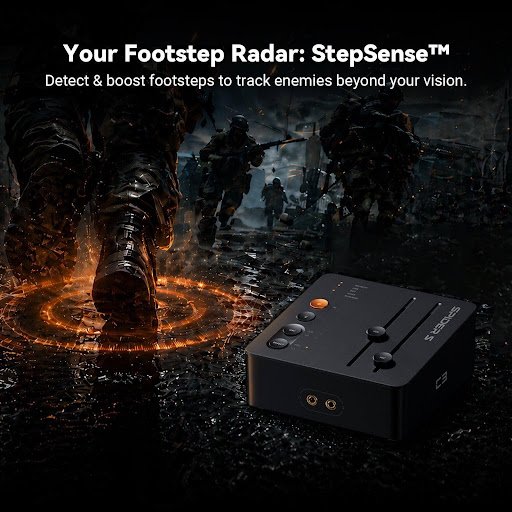
For most people building or upgrading today, this is the flexible answer, and it is where the market has concentrated its effort. If you are comparing options, the practical checklist for an external gaming sound card is short: a headphone output strong enough for your headset, a clean microphone input with sidetone, a volume knob you can find without looking, and drivers that do not need reinstalling every time Windows updates.
Setup effort is worth ten honest minutes. Put the card or box on a clean driver install, disable the onboard device in the BIOS or settings if you have replaced it, and set the game’s audio to match your actual speaker configuration rather than a surround mode you do not own. Then test with a familiar map or training range, because your ears calibrate to a known scene far faster than to a new one. Most ‘this changed nothing’ verdicts trace back to a skipped step here, not to the hardware itself.
Who Should Skip the Whole Idea
Skip it if your headset is already USB with processing you like, because a card would be duplicating a chain that works. Skip it if your current sound is clean, loud enough and your teammates hear you clearly — ‘good enough, verified’ beats ‘upgraded, hopefully’. And skip it if the budget is genuinely tight and your headset is the weak link, which it usually is: in the hierarchy of gaming audio, the transducer on your ears outranks everything upstream of it.
Buy it when the symptoms in the second paragraph are yours, when you have invested in a headset worth feeding properly, or when you play competitively enough that positional audio is information you act on. A gaming sound card will not make anyone a better player. It will make sure the game you hear is the game that is actually happening — and in a close match, that is worth having.
Product photos decide whether a shopper clicks or scrolls, but professional retouching is slow and costly for small sellers. Simple AI tools now let you fix backgrounds, lighting and clutter by typing what you want. Pollo AI photo editor is a beginner-friendly option worth trying, and this guide covers the edits that matter most, a simple step-by-step workflow, and the mistakes to avoid.
Which AI Edits Make the Biggest Difference?

Start with background, lighting and cleanup, because they fix the most common problems. Here are the edits I’d try first, in order:
- Background removal or replacement. Swap a messy desk or kitchen table for a plain white or soft neutral backdrop.
- Lighting and colour correction. Brighten dark shots and fix colour casts so the product looks as it does in real life.
- Object and blemish removal. Remove dust, stray cables, wrinkles or reflections that distract from the product.
- Lifestyle context. Place the product in a believable setting, such as a mug on a café table, to show scale and use.
- Canvas expansion. If a photo is cropped too tightly for a square listing or a tall story format, an AI image expander can extend the background beyond the original frame, so one shot works in several placements without a reshoot.
- Consistent style across the catalogue. Use the same background, lighting and framing across products so your shop looks cohesive.
Each of these can be done with a sentence rather than a tool tutorial, which is what makes AI editing beginner-friendly.
How Do You Edit a Product Photo with AI, Step by Step?

Upload a clear photo, describe what to change and what to keep, then review the result before you download it. Before you start, shoot near a window in daylight, keep the product in focus and avoid heavy shadows. AI works better with a clean starting point. In Pollo AI, the editing process then takes three steps:
- Upload and describe. Add your photo and write the changes you want, including any details that must stay the same, such as the label, colour or shape. Make one edit at a time: background first, then lighting, then cleanup. Combining everything in one instruction often confuses the result.
- Let AI apply your edits. Click Create and the editor processes your instructions and generates an edited image. If you’re unsure, generate a few variations.
- Review and download. Zoom in and check edges, labels, logos and shadows, then download the version that looks most natural, not the most dramatic.
What Instructions Work Well?
Short, specific instructions describing the result you want.
| Goal | Example instruction |
| Clean background | “Replace the background with a plain white studio backdrop” |
| Better lighting | “Brighten the product and soften the shadows” |
| Remove distractions | “Remove the cable on the left and the dust on the lid” |
| Lifestyle scene | “Place the bottle on a light oak table by a sunlit window” |
| Colour fix | “Correct the colour cast so the white label looks true white” |
| Protect the product | “Change only the background; keep the product’s shape, colour and label unchanged” |
What Does Each Sales Channel Need?
Plain, product-focused images work for marketplaces, while lifestyle shots work better on social and ads. Check each platform’s current image rules, since they change.
| Channel | Typical image style |
| Marketplace main image | Plain white background, product fills the frame |
| Your own product page | Clean hero shot plus lifestyle and detail views |
| Social posts | Lifestyle scene, often vertical 4:5 |
| Ads | Simple composition with room for a headline |
Creating two or three versions of the same photo, one for each channel, takes only a few more minutes.
What Mistakes Should Beginners Avoid?
The biggest mistake is making the product look different from what the customer will receive.
- Changing the real product. Don’t alter shape, size, colour or details. Mismatches lead to disappointed buyers and returns.
- Expanding over the product itself. Extend only the empty background around it, never the product’s edges or labels.
- Over-editing. Heavy smoothing and extreme contrast look fake. Aim for natural.
- Inconsistent style. Different backgrounds and lighting across products make a shop look scattered.
- Skipping the zoom check. AI can distort fine print, logos and edges, so inspect them closely.
- Starting with a blurry photo. Editing improves a good photo but cannot rescue a poor one.
Ready to Edit Your First Product Photo? Try Pollo AI
Start with one bestseller. Take a clear photo, open Pollo AI, and try three edits: a clean background, better lighting and a small cleanup. Compare the before and after, then repeat the same style across the rest of your catalogue. You will have a consistent, professional-looking set of product images without a studio or retouching software.

What Happens When a Buyer’s Inspection Turns Up Repairs in Overland Park, KS?

Can You Sell a House With a Lady Bird Deed in Michigan After Your Parent Passes Away?

How Do You Sell an Old Mill-Village House in Gaston County, NC?

Alex Pettyfer Net Worth, Wife, Age, Height, Children, Career and More

Brad Williams Net Worth, Wife, Height, Age, Daughter, Family, Career and More

Eldorado.gg Review 2026: How It Works, Safety, Fees, and Risks
-
Celebrity10 months ago
Alex Pettyfer Net Worth, Wife, Age, Height, Children, Career and More
-
Celebrity10 months ago
Brad Williams Net Worth, Wife, Height, Age, Daughter, Family, Career and More
-
Blog2 months ago
Eldorado.gg Review 2026: How It Works, Safety, Fees, and Risks
-
 Anime11 months ago
Sanzoku Bandits of One Piece: Origins, Higuma, and Their Role in Dawn Island
-
 Celebrity11 months ago
John McGinn Net Worth, Age, Height, Wife, Childrens, Career and More
-
 Celebrity10 months ago
Frances de la Tour Net Worth, Age, Height, Husband, Childrens, Career and More
-
 Celebrity11 months ago
Will Trickett Net Worth, Wife, Childrens, Age, Career and More
-
 Blog2 months ago
Crackstube: A Complete Guide to the Digital Publishing Platform